Appearance
Task Assistant User Manual
Introduction
Task Assistant is a powerful automation utility for Windows designed to streamline your daily workflow. It provides a non-intrusive, floating interface that stays out of your way until you need it. By leveraging the Back-To-Basic (BTB) scripting engine, Task Assistant allows you to automate repetitive tasks, launch applications with specific parameters, and perform complex operations with a single click.
1. Getting Started
Installation and Setup
- Launch Task Assistant: Run
TaskAssistant.exe. The application will appear as a small blue tab at the top of your screen. - First Interaction: Move your mouse over the tab. It will expand to show the task list.
- Run a Sample: Double-click any of the default tasks to see them in action.
Visual Layout
Task Assistant is designed to be elegant and out of the way.
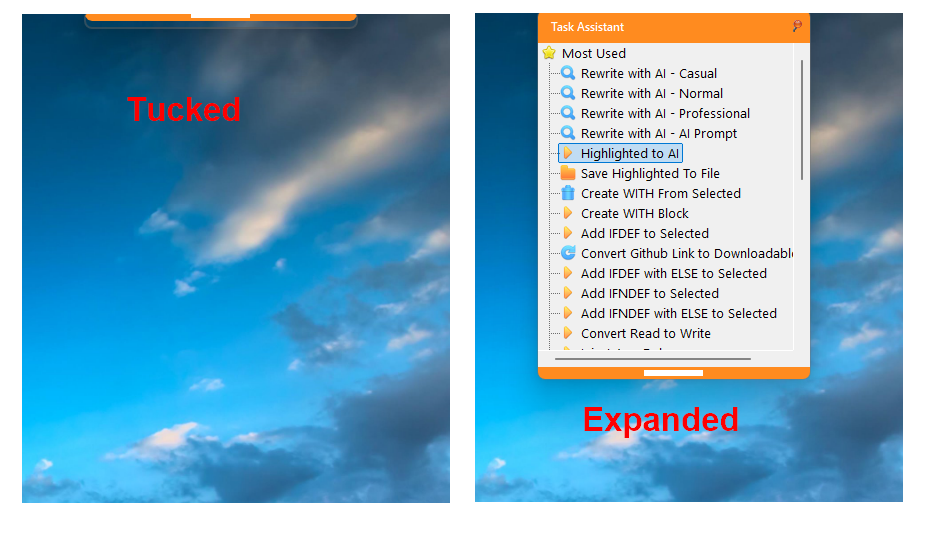
Figure 1: Task Assistant in expanded mode.
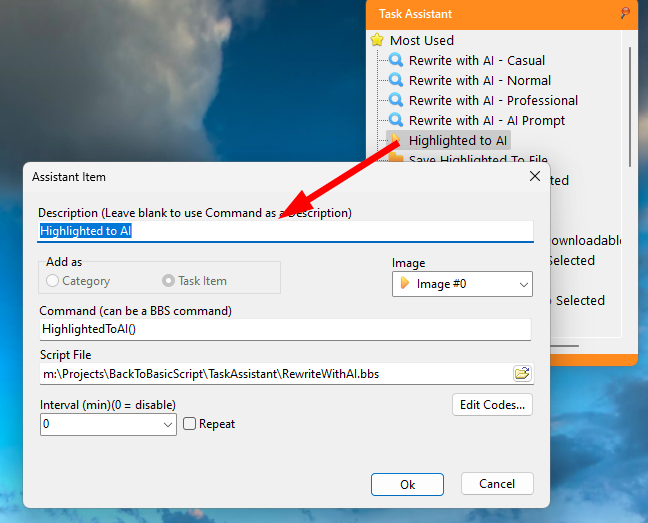
Figure 2: Customizing tasks via the context menu.
2. The Interface
The Floating Bar
Task Assistant lives at the very top of your primary monitor.
- Tucked Mode: When not in use, Task Assistant shrinks into a thin bar (tab) at the top of the screen.
- Auto-Expand: Simply move your mouse over the tucked bar, and it will automatically expand to show your task list.
- Stay Untucked: Use the "Pin" icon (Stay Untucked) on the title bar to keep the application expanded even when the mouse leaves.
- Auto-Tuck Movement: If auto-tuck is active and you expand the bar by hovering, you can still move the window by its title bar. However, as soon as you move your mouse away from the application, it will automatically bounce straight back to the top of the screen and return to tucked mode.
- Title Bar Menu: Right-clicking the title bar area will open a context menu providing quick access to common application commands. This menu is identical to the Tray Icon menu.
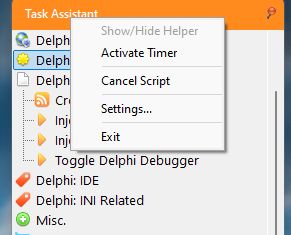
Figure 3: Context menu available by right-clicking the title bar.
Task List
The main window displays a tree-style list of all your configured tasks.
- Categories: Organize tasks into folders.
- Interaction: Double-click a task to run it immediately.
- Context Menu: Right-click any task to access management features (Add, Edit, Delete, Run).
Tray Icon
When minimized or tucked, Task Assistant remains active in the System Tray.
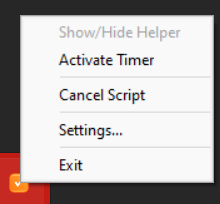
Figure 4: Quick access via the system tray.
- Single Click: Brings the application to the front.
- Right-Click: Quick access to Settings, Show/Hide, and Exit.
2.4 Common Application Commands
The following commands are available through the Title Bar right-click menu and the System Tray menu:
- Activate Timer: Toggles the global state of task timers. When enabled, any tasks configured with an execution interval will automatically run according to their schedule.
- Cancel Script: Immediately stops any script that is currently executing. This is useful for halting long-running or stuck automations.
- Settings...: Opens the main configuration dialog to adjust the application's appearance, folder paths, and general behavior.
- Exit: Gracefully shuts down the Task Assistant application.
3. Working with Tasks
What is a Task?
A Task is a specific command mapping to a Back-To-Basic script file. Each task defines:
- Task Name: The display name in the list.
- Command: Focuses on a specific
SUBorFUNCwithin the script. If empty, it defaults toTask(). - Script File: Path to the
.bbsfile containing the logic.
Creating and Managing Tasks
Right-click on the task list or use the application menu to manage your automation sets.
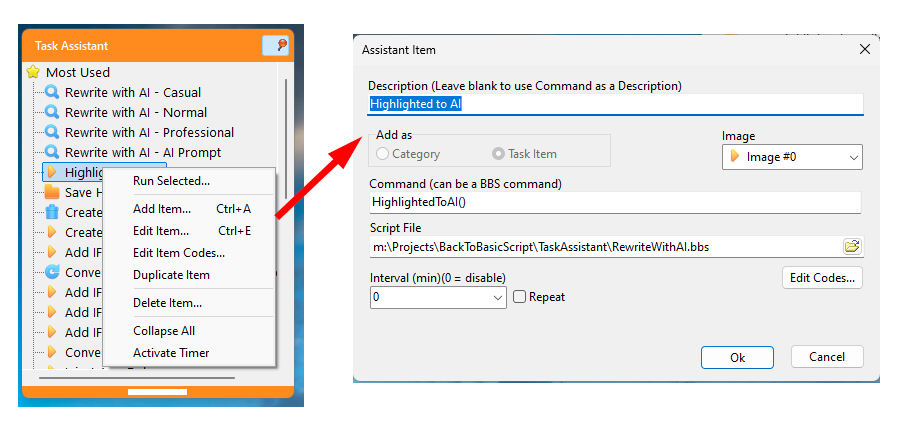
Figure 5: The Add/Edit Task dialog.
- Add Item / Edit Item: These actions bring up the Task Editor dialog shown above.
- Task Types:
- Category (Parent): Serves as a folder to organize related tasks.
- Task Item (Child): A specific automation script.
- Organization: Items can be easily dragged and rearranged within the tree to suit your workflow.
- Actions:
- Add Item: Create a new task or folder.
- Edit Item: Modify the name, command, or script path.
- Delete Item: Remove a task (requires confirmation).
- Duplicate Item: Quickly clone an existing task for minor variations.
Editing Scripts (QuickCoder Integration)
Task Assistant integrates with QuickCoder, a dedicated script editor for Back-To-Basic.
- Select a task and choose Edit Script Codes.
- This will launch QuickCoder (if configured in Settings) and open the specific script and subroutine for immediate editing.
4. Automation & Timers
Task Assistant supports scheduled execution of tasks.
- Interval: Set a task to run every X milliseconds.
- Recycled: Choose if the task should repeat or run only once.
- Global Timer Control: Enable or disable all timers via the application menu or tray icon. Tasks with active timers are highlighted in the list.
5. Back-To-Basic (BTB) Scripting
Language Overview
BTB is a proprietary, easy-to-learn scripting language similar to BASIC.
- No Declaration Required: Variables are created on the fly.
- Loosely Typed: Handle strings, numbers, and arrays effortlessly.
- Includes: Share code between scripts using
INCLUDE.
Script Structure
A typical script looks like this:
text
'-- Library includes (default.bbs is included automatically)

SUB Task()
    PRINT "Starting automation..."
    '-- Your logic here
ENDSUB
Key UI Features in Scripts
BTB scripts can display their own interfaces:
- DIALOG: Standard pop-up windows for user input.
- WIZARD: Multi-step guides for complex tasks.
- PRINT/INPUT: Basic text interaction.
6. Settings and Configuration
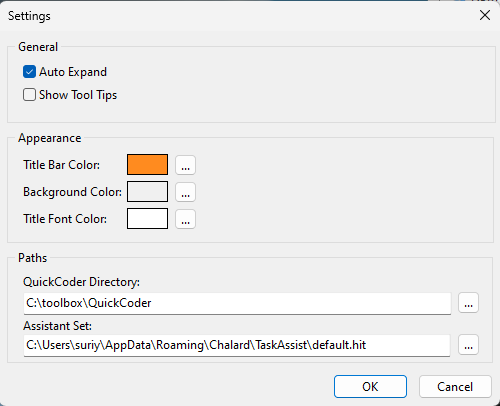
Figure 6: The Settings dialog allows for look-and-feel customization.
Access Settings from the right-click menu to customize:
Appearance
- Title Bar Color: Customize the look of the top bar.
- Background Color: Change the task list background.
- Font Color: Adjust text visibility on the title bar.
General
- Auto Expand: Determines how categories in the task list behave. When enabled, clicking a category will automatically expand its child items. When disabled, a double-click is required to expand a category.
- Show Tool Tips: Enable hints for interface elements.
Paths
- QuickCoder Directory: Path to your script editor.
- Assistant Set: Choose which
.hitfile to load your tasks from.
7. Technical Reference
Folder Structure
- Application Files:
\Program Files\Chalard\TaskAssistantTaskAssistant.exe: The main executable.Scripts\default.bbs: Global library script.
- User Data:
%appdata%\Chalard\TaskAssistantTaskAssistant.ini: Application settings.default.hit: The default task list file.\Scripts: Your custom script files.
Fallback Behavior
If a script file is not found in the absolute path specified in a task, Task Assistant will automatically search in your user \Scripts folder.
For more detailed script syntax, refer to the "Script Syntax and Features.md" documentation.